
Hey there! If you're reading this, I bet you want to create your own website but feel overwhelmed by all the technical stuff. I completely understand - I was in your exact position a few years ago.
When I wanted to create my first website, I thought I needed to learn coding, pay for hosting, and spend thousands of dollars. Honestly, I was completely wrong. I discovered Blogger (Google's free platform) and built my first real website in just one afternoon - without any coding or money.
In this guide, I'll walk you through exactly how to create a free website using Blogger, step by step. I promise it's easier than you think, and by the end of this guide, you'll have your own live website. Let's get started!
What is Blogger and Why Use It?

Let me explain Blogger in simple terms: Blogger is Google's completely free platform that lets anyone create a website or blog. Think of it as Google giving you free hosting, free tools, and a free subdomain to build your online presence.
Why I love Blogger for beginners:
💡 My Personal Experience:
I started with Blogger in 2018 with zero technical knowledge. Within 2 hours, I had my first website live. Today, that same website gets thousands of visitors every month. If you're just starting, Blogger is honestly one of the safest and easiest platforms to learn without spending money.
What You Need Before Starting (Spoiler: Not Much!)
Many people overthink what they need to start a website. Let me simplify it for you:
What you DON'T need:
Honestly, if you can use YouTube or send an email, you can use Blogger. Don't let fear of technology stop you - I was exactly where you are now, and I figured it out.
How to Fix Mobile Hanging Problem (Proven Methods That Actually Work)
Step-by-Step: How to Create Your Free Website Using Blogger

This is where the magic happens. I'll walk you through each step exactly as I did when I created my first website. Follow along - you can do this!
Step 1: Create a Google Account (If You Don't Have One)
Since Blogger is a Google product, you need a Google account (Gmail). If you already have Gmail, skip to Step 2.
Pro tip: Choose a professional-sounding Gmail if possible. It looks better if you ever share your email with readers.
Step 2: Go to Blogger.com and Sign In
This is where you'll access the Blogger platform.


My first time: When I first saw the Blogger dashboard, I felt a bit overwhelmed. Don't worry - it looks more complicated than it is. We'll take it one step at a time.
Step 3: Create Your New Blog
Now comes the exciting part - creating your actual website!
💡 Important Tips for Choosing Your Blog Details:
Title: Make it descriptive but not too long. "Healthy Recipes for Beginners" is better than "John's Kitchen"
Address: Try to match your title. If your title is "Healthy Recipes for Beginners," try healthyrecipesforbeginners.blogspot.com
Theme: Don't overthink this - pick any clean-looking theme. We'll customize it later.
What happened when I created mine: I spent 30 minutes trying to find the "perfect" name. Honestly, just pick something and start. You can always change it later (except the address - that's permanent).
Step 4: Understand Your Blogger Dashboard
After creating your blog, you'll see the dashboard. Let me explain what everything does:

Spend a few minutes clicking around the dashboard. Don't worry - you can't break anything. I clicked on everything when I started, just to see what it does.
Step 5: Write and Publish Your First Post
This is the most exciting part - creating your first piece of content!


💡 My First Post Experience:
My first post was just 200 words introducing myself. It wasn't perfect, and honestly, it was a bit embarrassing looking back. But publishing that first post gave me the confidence to keep going. Don't aim for perfection - aim for progress.
Congratulations! You've just published your first post. Your website is now live on the internet. You can view it by clicking "View Blog" at the top of the dashboard.
How to Recover Deleted Files from Android (Step-by-Step Guide for Beginners)
Step 6: Customize Your Website's Look
Now let's make your website look more professional and unique.
- Background: Change colors or add an image
- Layout: Rearrange where elements appear
- Advanced: Change fonts and colors in detail
My advice: Keep it simple. A clean, readable website always looks more professional than a busy, flashy one. Stick to 2-3 colors max and use easy-to-read fonts.
Step 7: Create Important Pages
Every website needs a few standard pages. Here's how to create them:
These pages make your website look trustworthy and professional. Don't skip them!
🎉 Quick Recap - What You've Accomplished:
- Created a Google account (if needed)
- Set up your Blogger account
- Created your blog with a name and address
- Published your first post
- Customized your website's appearance
- Added essential pages
That's it! In about an hour, you've created a complete, live website. See? It wasn't as hard as you thought!
How to Make Your Blogger Website Look Professional
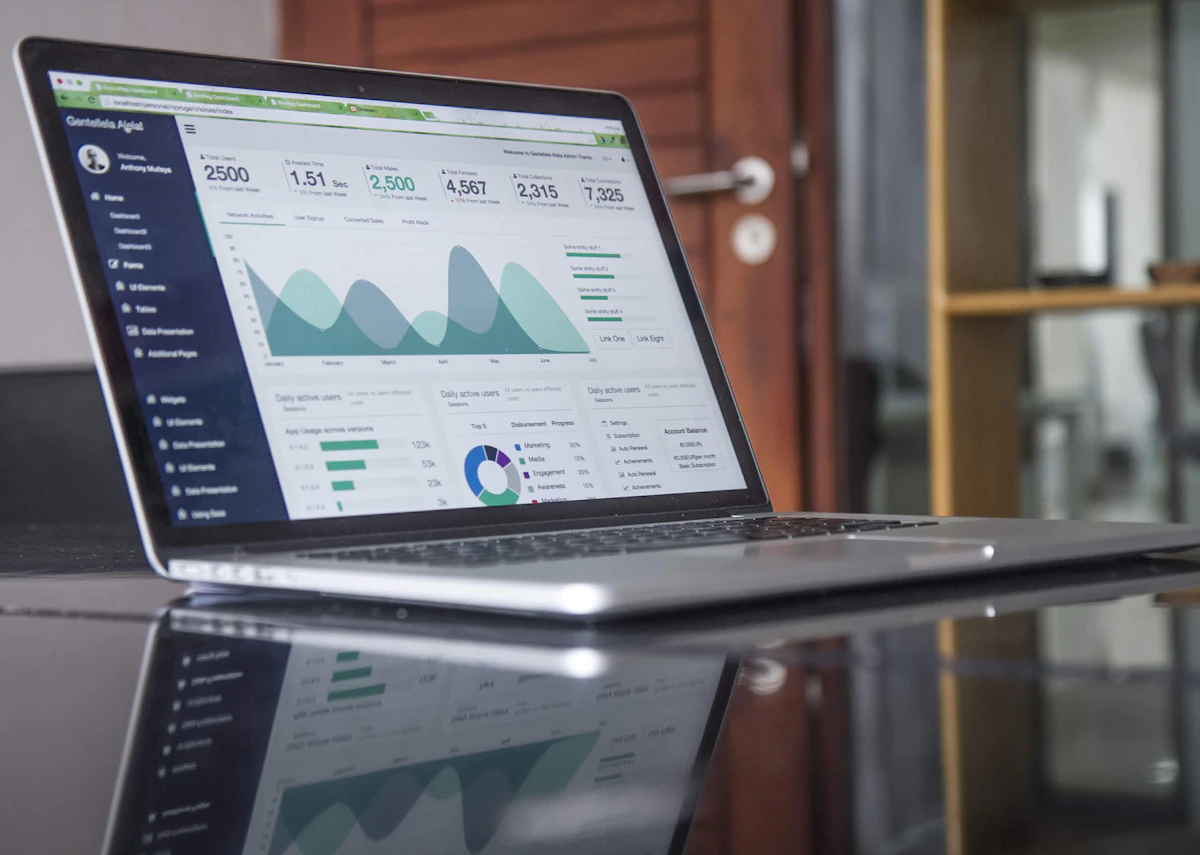
Based on my experience building multiple websites, here's what makes a Blogger site look professional:
My biggest design lesson: When I started, I used bright colors and fancy fonts because I thought they looked "cool." My bounce rate (people leaving immediately) was high. When I switched to a simple black text on white background with a clean font, my engagement improved dramatically.
Common Mistakes Beginners Make (I Made These Too!)
Learning from others' mistakes can save you months of frustration. Here are the most common mistakes I see (and made myself):
Honest confession: I made all these mistakes when I started. My first blog had a terrible name, inconsistent posting schedule, and I expected to make money in a month. I failed. Then I learned from those mistakes and started this blog you're reading now.
Can You Really Earn Money from Blogger? (The Honest Truth)
This is probably on your mind, so let me be completely honest about earning potential.
✅ Yes, you can earn money from Blogger, BUT:
- It takes time: Don't expect income in the first few months
- It requires traffic: You need visitors to make money
- Quality content is key: Helpful content attracts readers
- No "get rich quick": It's a marathon, not a sprint
Ways to earn from your Blogger website:
My earnings journey: My first $1 from blogging took 4 months. My first $100/month took 8 months. My first $1000/month took 18 months. It's not fast money, but it's sustainable income that grows over time.
Blogger vs WordPress: Which is Better for Beginners?

| Feature | Blogger | WordPress |
|---|---|---|
| Cost | 100% Free | Free software, but needs paid hosting ($3-10/month) |
| Ease of Use | Very Easy (beginner-friendly) | Moderate (learning curve) |
| Customization | Limited but sufficient for beginners | Unlimited (with plugins and themes) |
| Hosting | Free by Google | You need to arrange and pay for hosting |
| Ownership | Google owns the platform (you own content) | You own everything |
| Best For | Absolute beginners, hobby bloggers, testing ideas | Serious bloggers, businesses, advanced users |
My recommendation: If you're completely new to websites and blogging, start with Blogger. It's free, easy, and lets you learn the basics without financial risk. After 6-12 months, if you outgrow Blogger's features, you can always move to WordPress.
I started with Blogger, learned the basics, built an audience, and only moved to WordPress when I needed more advanced features. Starting with Blogger gave me confidence without the pressure of monthly hosting costs.
Tips to Grow Your Blogger Website
Creating your website is just the beginning. Here's how to make it successful:
The most important tip: Don't compare your beginning to someone else's middle. When I started, I looked at big blogs with thousands of articles and felt discouraged. Remember, every successful blogger started with zero readers, just like you.
Best Free Screen Recorder for PC (No Watermark, 2026 Tested)
Frequently Asked Questions
Yes, Blogger is completely free. Google provides free hosting, a free subdomain (yoursite.blogspot.com), and all the tools you need to create and manage your website. The only time you might spend money is if you want a custom domain (like yourname.com), which costs about $10-15/year.
Absolutely! I created my first Blogger website with zero coding knowledge, and thousands of others have too. Blogger is designed for non-technical users. Everything is click-and-drag or simple forms to fill out. If you can use email or social media, you can use Blogger.
Yes, you can use a custom domain (like yourname.com) with Blogger. You need to purchase the domain from a registrar like GoDaddy or Namecheap (about $10-15/year), then connect it to your Blogger site. Blogger has step-by-step instructions for this in the Settings section.
For absolute beginners, I highly recommend starting with Blogger. It's free, easier to learn, and has no ongoing costs. WordPress is more powerful but has a steeper learning curve and requires paid hosting. Start with Blogger to learn the basics, then move to WordPress later if needed.
You can create up to 100 blogs per Google account. That's more than enough for most people! Each blog can have its own design, content, and domain.
Yes, you can earn money through Google AdSense, affiliate marketing, selling products or services, and other methods. However, it takes time to build traffic before you can earn significant income. Focus on creating helpful content first, and the money will follow as you grow your audience.
Final Thoughts
Creating your own website might seem daunting at first, but as you've seen in this guide, it's actually quite straightforward with Blogger. The hardest part isn't the technical stuff - it's overcoming the fear and taking that first step.
My biggest advice: Start before you feel ready. My first website wasn't perfect, my writing wasn't great, and I had no idea what I was doing. But starting imperfectly was better than never starting at all.
Remember, every successful blogger started exactly where you are right now - with zero experience, wondering if they could really do this. The difference is they took action.
You now have all the knowledge you need to create your free website using Blogger. The only thing left is to actually do it.
Ready to Create Your Website?
Don't let fear or perfectionism stop you. Your website doesn't need to be perfect - it just needs to exist.
Take action now: Go to blogger.com and create your first website. It'll take less than 30 minutes.
Need help or have questions? Leave a comment below - I'd love to help you get started!
Found this guide helpful? Please share it with someone who wants to create their own website but doesn't know where to start.
Happy blogging! 🚀
© 2026 MS Tech In. All rights reserved. This blog post is for educational purposes only.
Images courtesy of Unsplash. Blogger is a trademark of Google LLC.